Viewing & Exporting Contracts
Accessing the Contract List
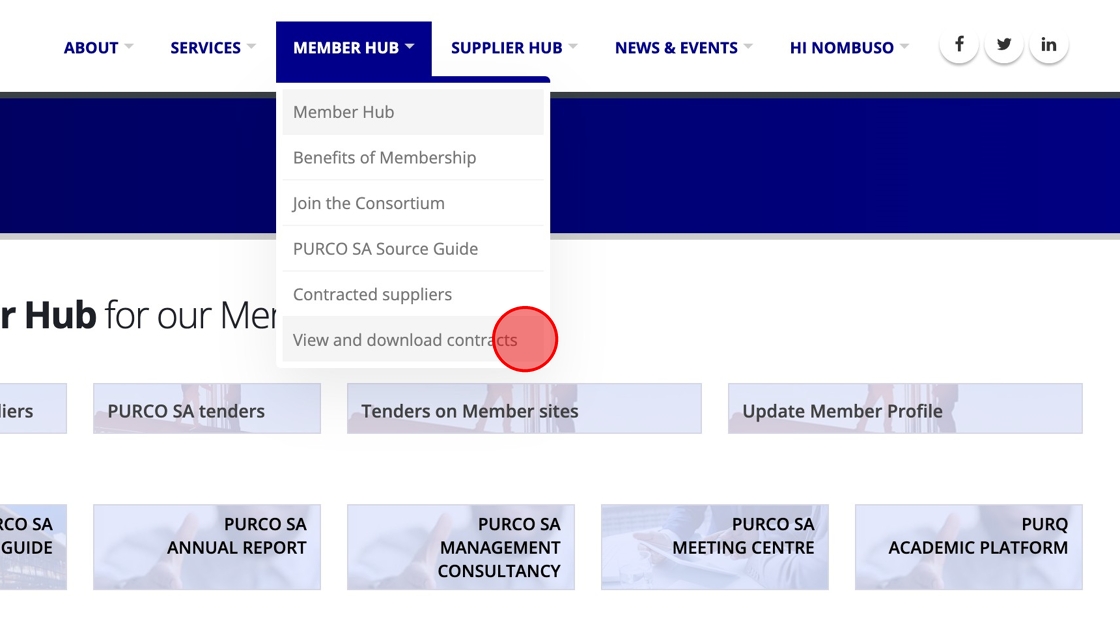
In the MEMBER HUB menu, click View and download contracts.
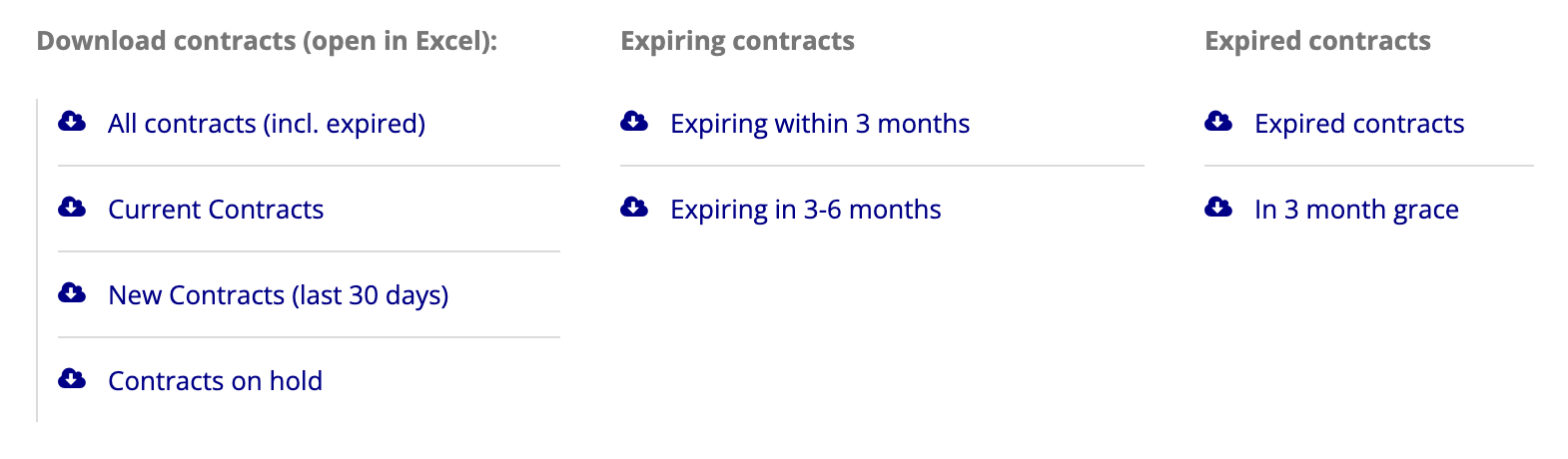
Quick Contract List Exports
Links are provided at the top of the page for quick exports of various types, clicking on these will directly download the described contract list.
Filtering the Contract List
To list only contracts matching certain criteria, use one or more of the available filters and click Apply.

NOTE: Filters requiring text input will match contracts that contain the provided text for the specified field, i.e. you may provide only part of the Supplier name (for example) without needing to type the complete name.
Exporting a Filtered Contract List
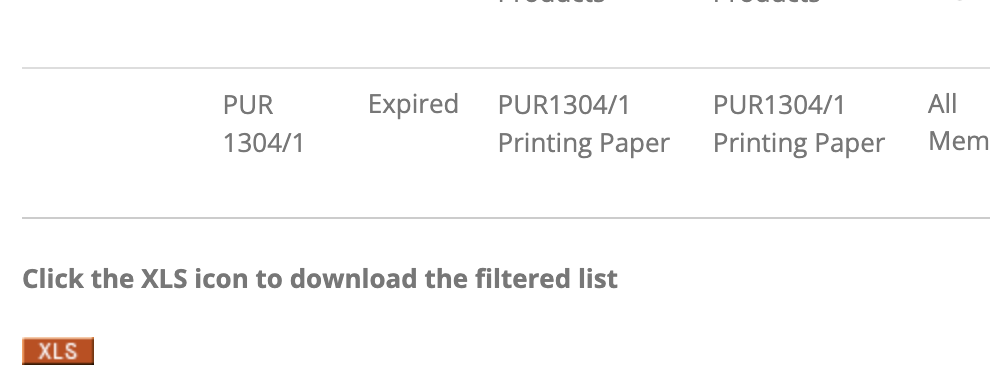
Once you have filtered the list of contracts appropriately, click the XLS to download an export of only the filtered list of contracts.
Viewing Details of a Contract
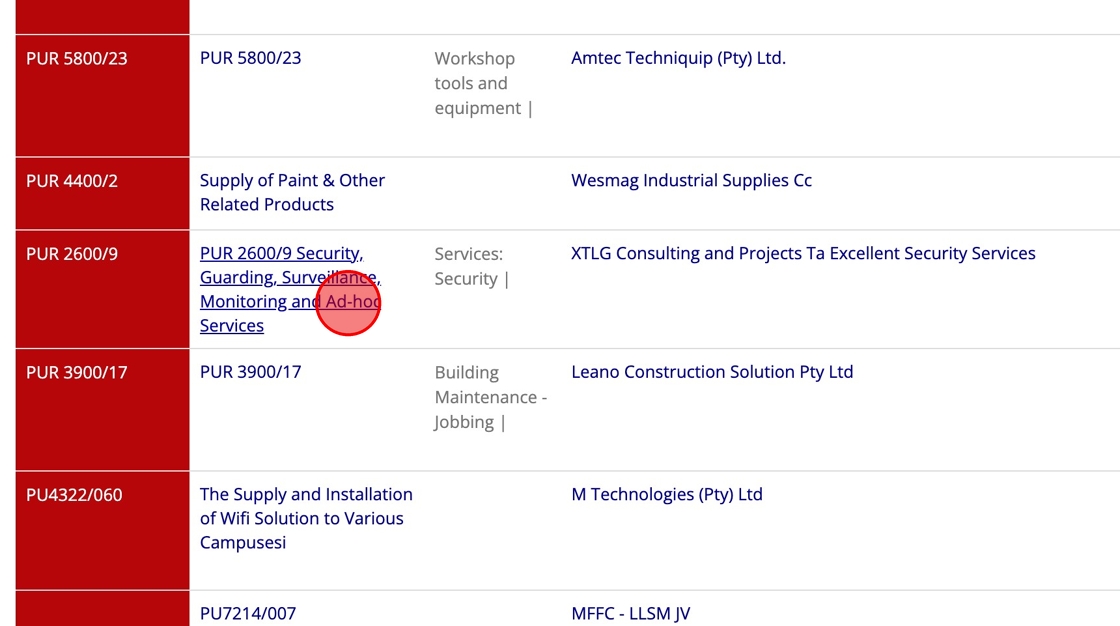
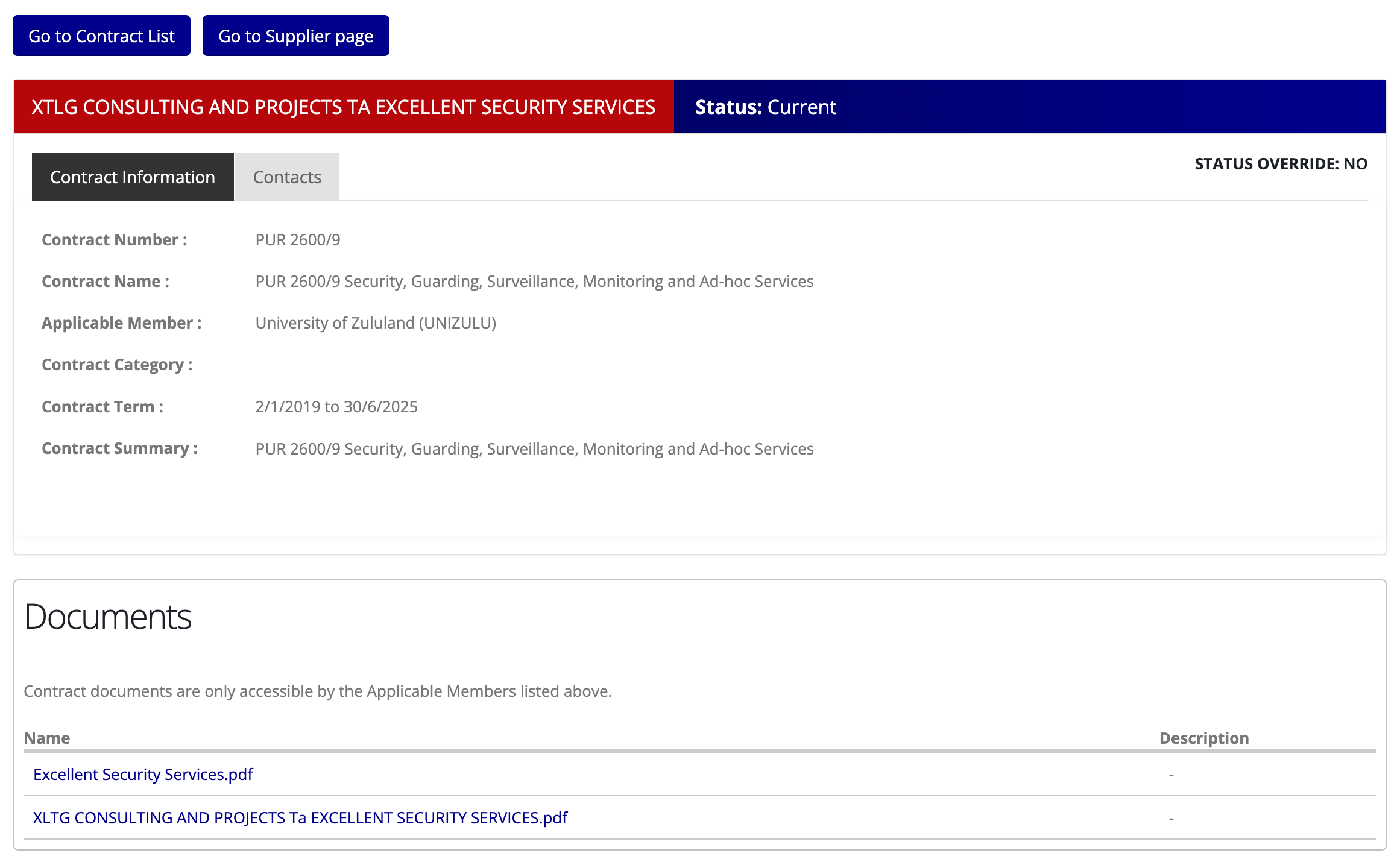
The Contract Number (first column in the Contract List) and Contract Name (second column) can be clicked in order to view more details about that particular contract:
Note that information on this page will be limited if this is not one your organisation's contracts and is not an "All Members" contract.
Viewing a Contract's Contacts
In the Contract Details Page accessed as described above, click the "Contacts" tab in order to view the contacts that are responsible for the contract from both parties.
Downloading Contract Documents
Access the Contract Details Page as described here. Provided that this is a contract belonging to your organisation or all members, available documents will be listed at the bottom of the page.

Clicking the link will open or download the document (depending on your browser settings), if opened in a new tab your browser will provide a button / link within that tab in order to download the file to your computer.