The LOA Process
When a contract is awarded, the system automatically:
- Creates the LOA document for the Finance Administrators
- Sends an email notification to the Finance Administrator
- Populates a live pages which list contracts for the Tender
- Initiates a tracking process to ensure the contract details are captured on the ERP system
Downloading the LOA
Downloading as the Finance Administrator
-
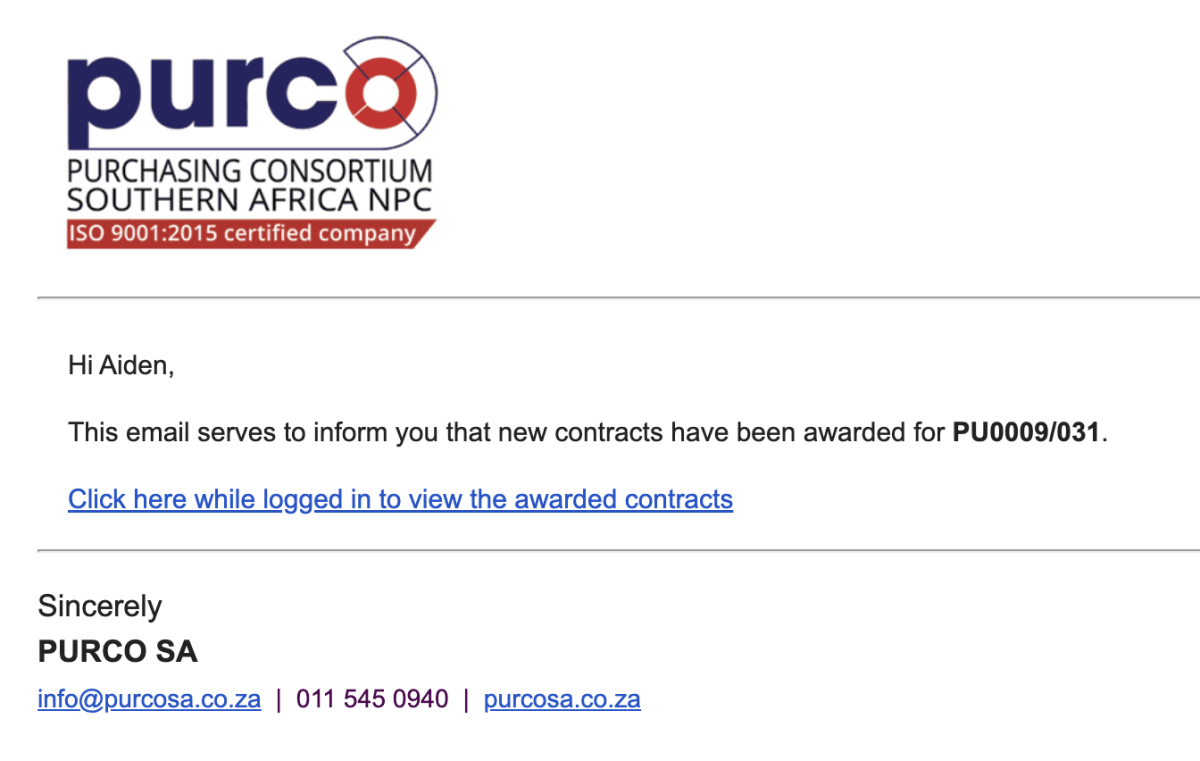
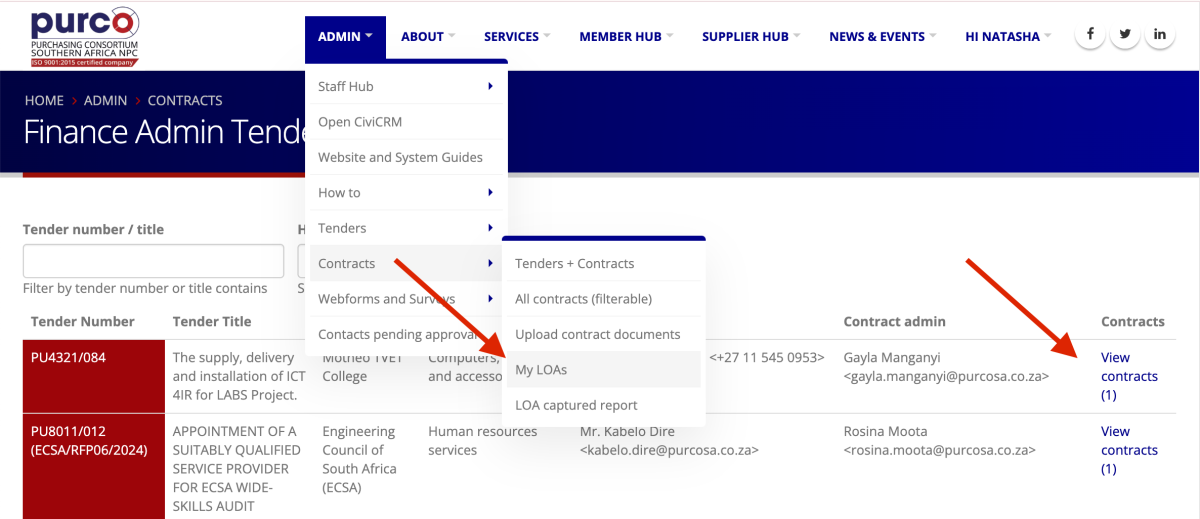
The Finance Administrator clicks the link in the email or opens their My LOAs page.
-
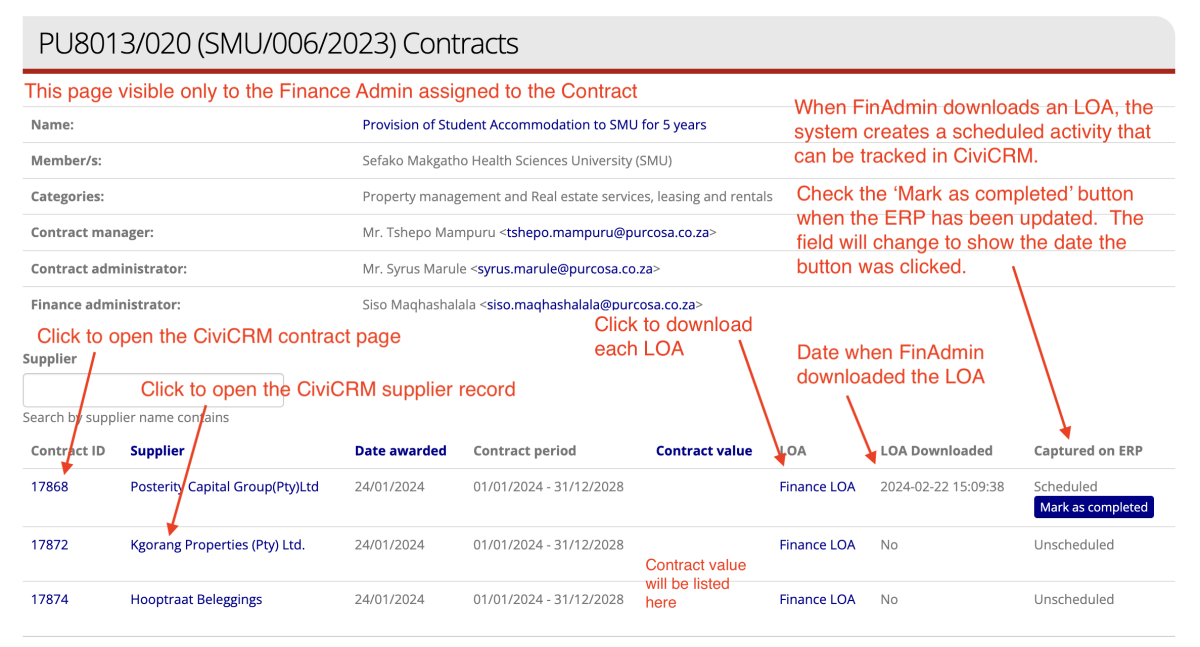
They then click on the link in the Download LOA column.
-
The Contract List page encompasses all contract data for the tender, as well as a list of all suppliers who have been awarded a contract.
Downloading as Contract Administrator
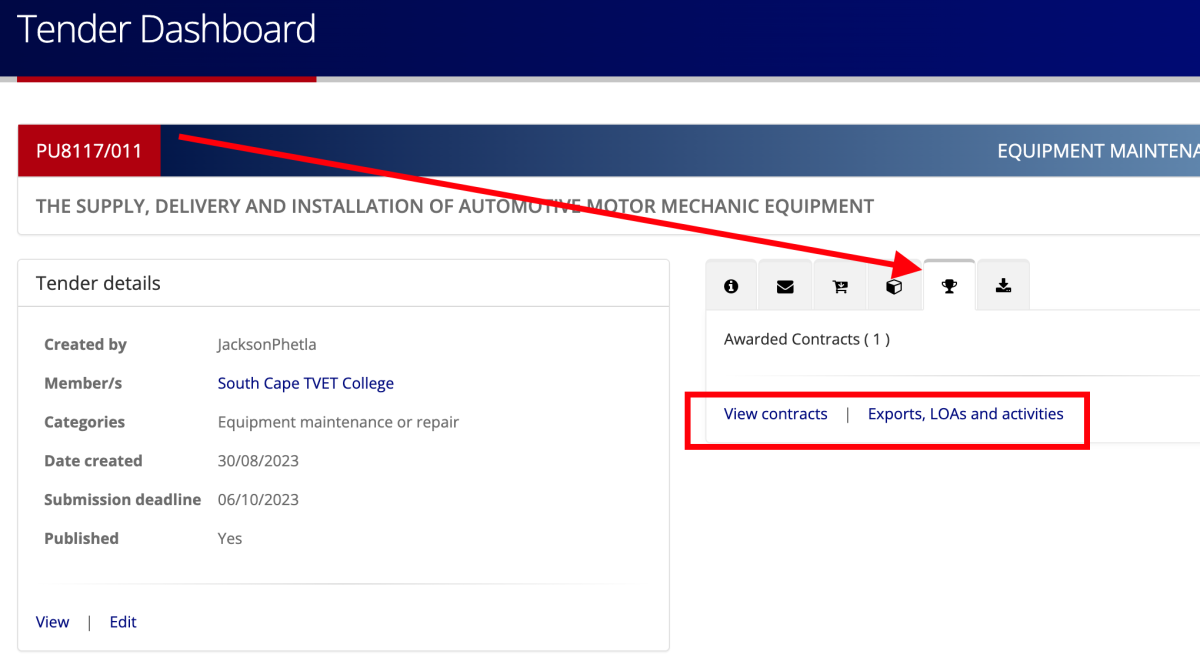
Contract administrators and other users with the required permissions can download LOAs for contracts through the links provided on the Tender Dashboard:
Tracking LOA Download and ERP Capture Status
-
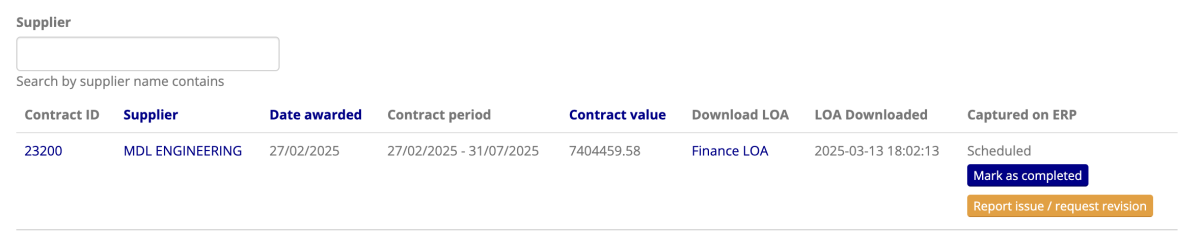
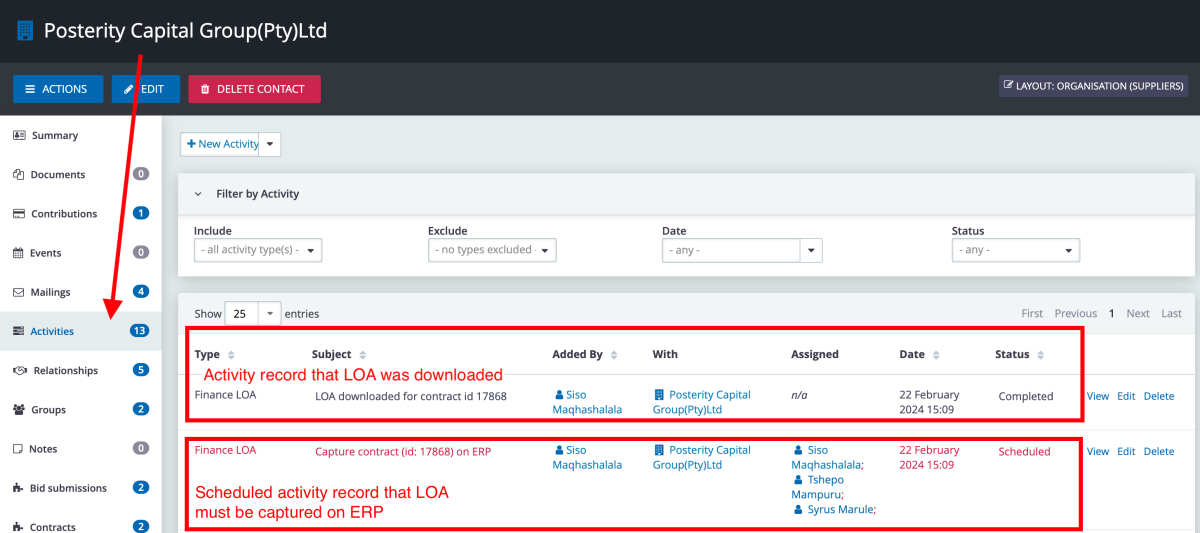
Everytime the LOA is downloaded an activity is logged. When the Finance Administrator downloads the LOA, the system adds the date and time that the LOA was downloaded in the LOA Downloaded column, an additional activity is automatically created for the capture of the contract on the ERP system and set to the Scheduled status.
-
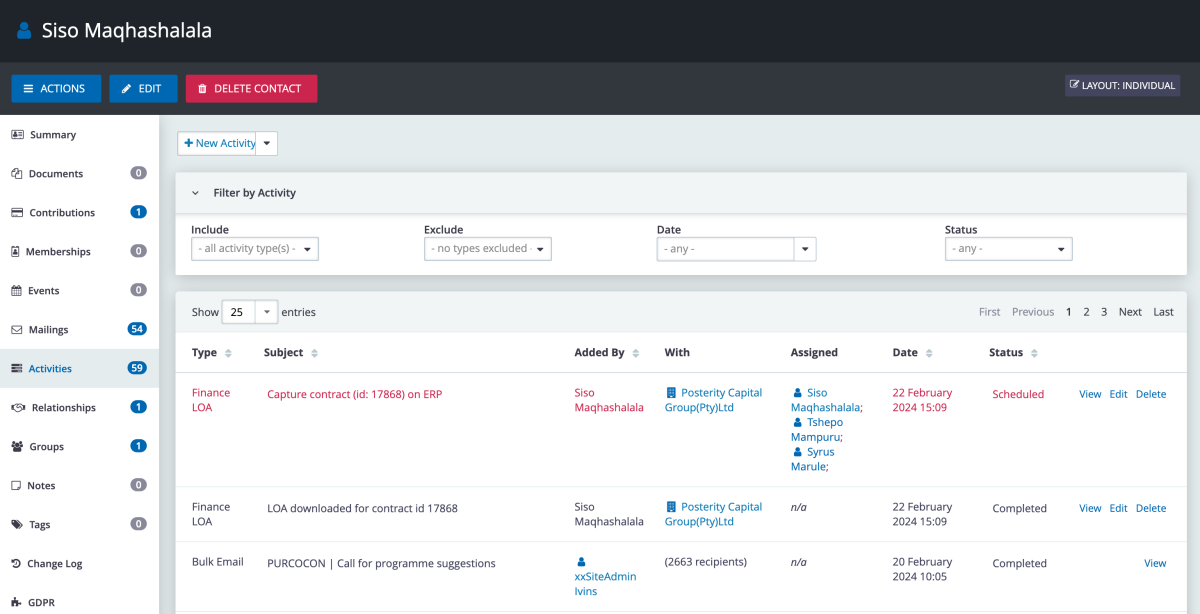
Since the source record of this activity is the contract itself, it will be visible in the Activities Tab of the supplier owning the contract record. The Finance Administrator will be the contact appearing under Added By and will also be listed as an assignee under Assigned, along with the Contract Manager and Contract Administrator. (Note: This activity will also be listed in the Activities Tab of each of these contacts.)
-
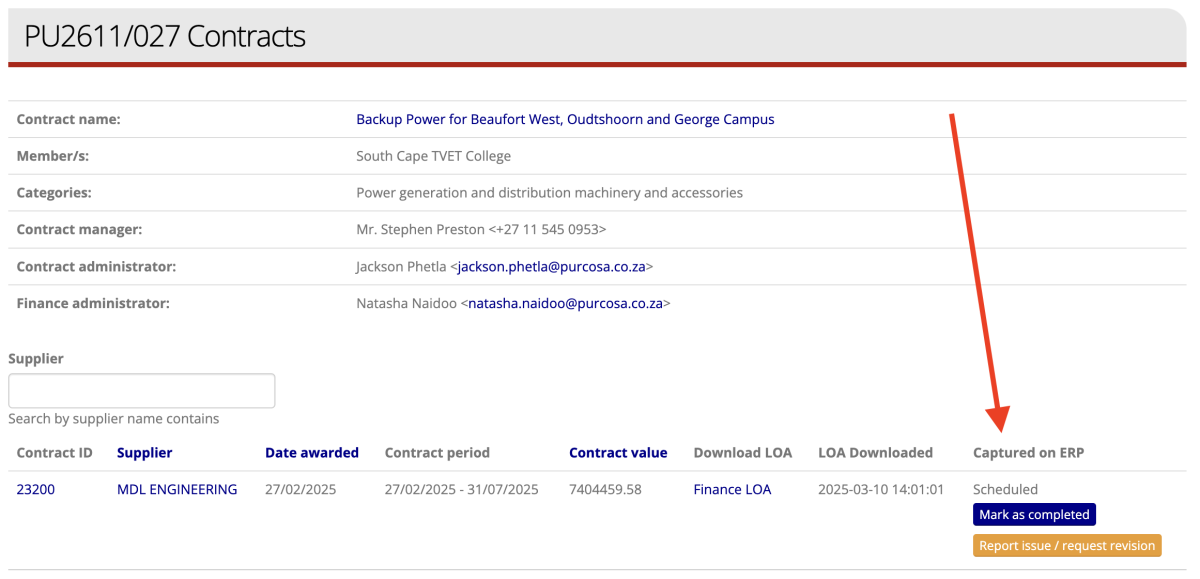
Two buttons are now available in the Captured on ERP column:
- Mark as completed
- Report issue / request revision
Completing the LOA Process After ERP Capture
Once the FinAdmin has captured the contract on the ERP system, they click the Mark as completed button on the contract list page.
Upon marking the LOA's ERP capture as complete, the system will:
- Remove the Mark as Completed button.
- Set the "Capture on ERP" activity status to Complete.
- Reflect the date and time of the completion in the Captured on ERP column.
Checking the Status of Contracts and LOAs
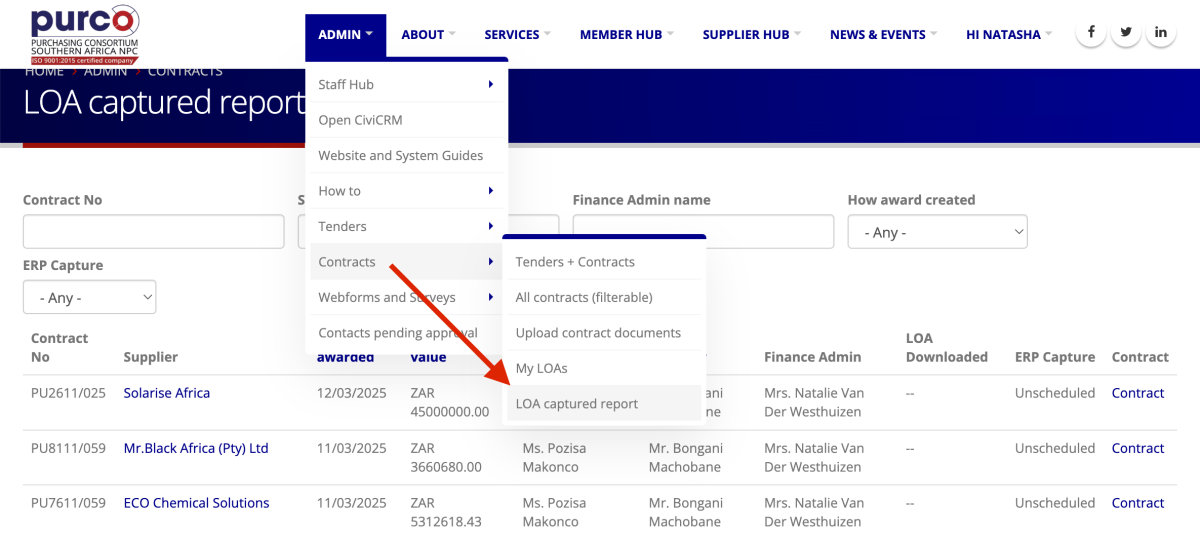
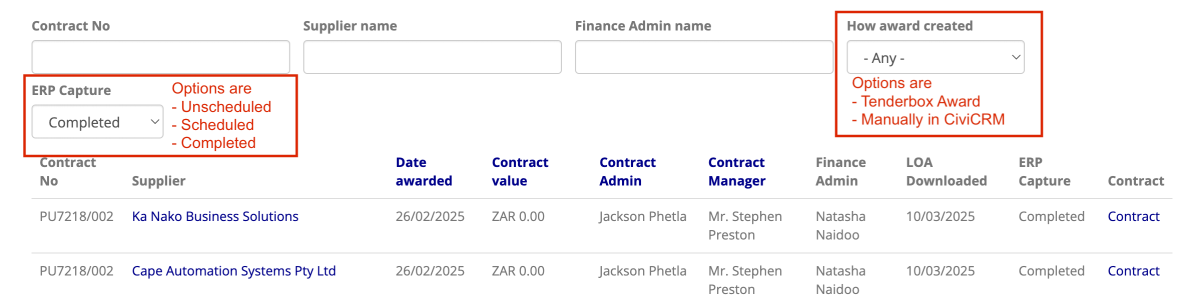
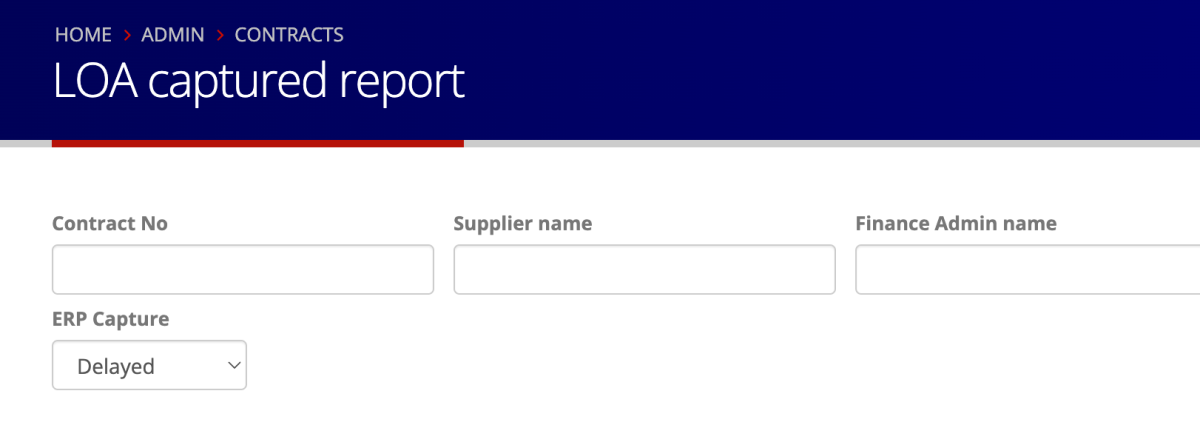
Any user with a Contract Admin or Finance role can check the status of contracts and LOAs by visiting the LOA Captured Report page.
The LOA Rejection Process
This is the process Finance Administrators will use to reject an LOA and report an issue to the tender author.
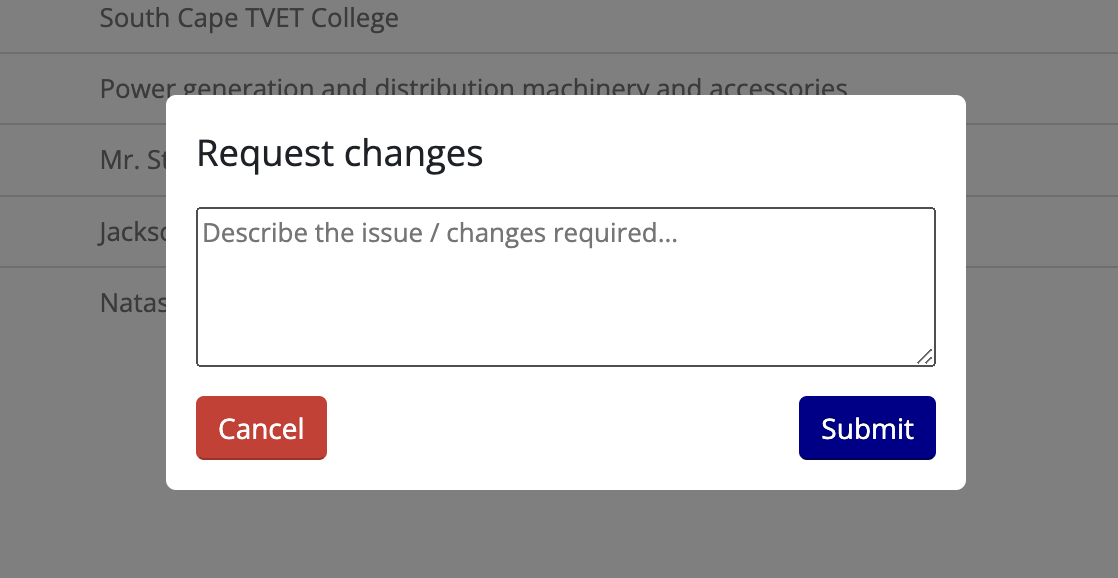
- FinAdmin can reject an LOA by clicking the button Report Issue / Request Revision.
- When clicked, the system opens a form to specify the required changes.
- Submitting the request updates the table, reflecting that ERP Capture is delayed pending the revision.

- Submitting the revision request triggers an email to the Contract Administrator and Manager with the rejection details.
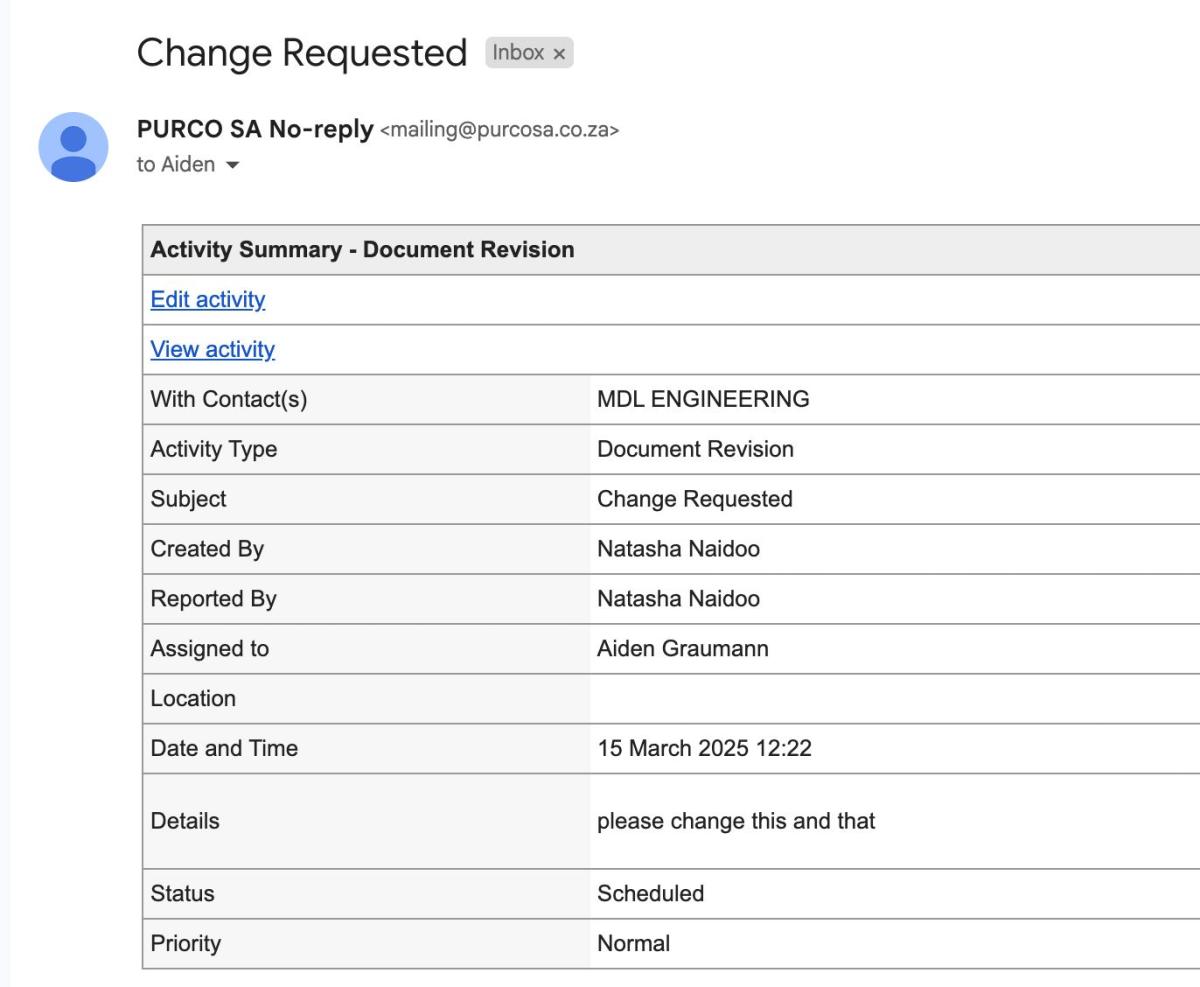
- The LOA rejection adds a scheduled "Document Revision" activity, which can be seen in the Activities Tab of all involved contacts - the supplier organisation, the Finance Administrator, Contract Administrator, and Contract Manager.

- The "Captured on ERP" column now has a Delayed status. Contracts like these can be filtered in the LOA Captured Report.
Responding to a Revision Request
- On receipt of the Change Requested email, the tender author should review and correct the issue.
- Once resolved, they should:
- Find the relevant "Document Revision" activity (which appears in the Activities Tab of their own contact summary as well as the supplier's contact summary)
- Click the Edit link for the activity.
-
Set the status of the activity as Complete.
-
Marking the activity as Completed triggers an email notification to the FinAdmin.
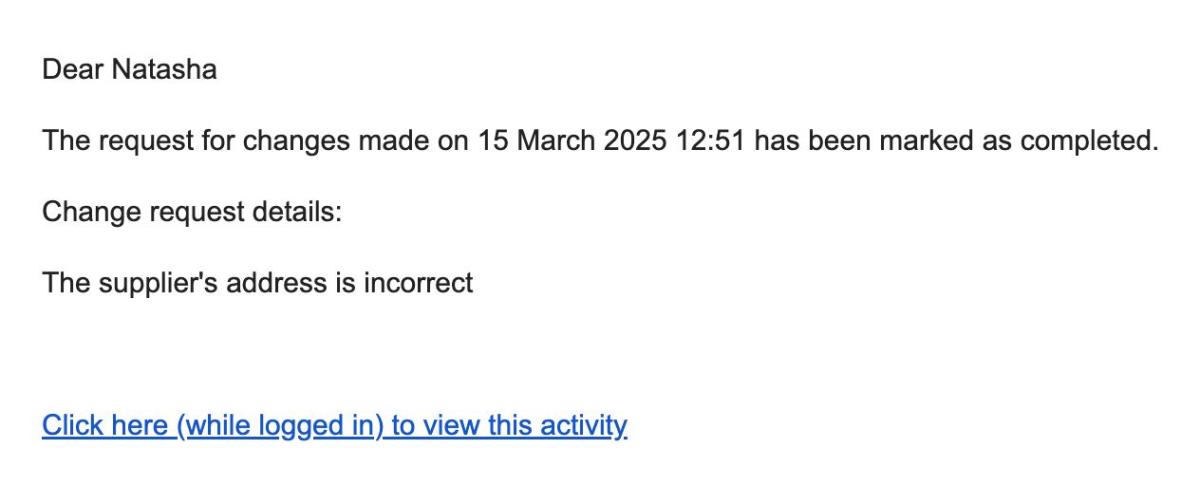
The Captured on ERP column in the Contract list now reflects as "Delayed (revision ready)". The LOA Downloaded column reflects that the revision has not yet been downloaded:

-
After the FinAdmin has download the updated LOA, the LOA Downloaded column reflects the date and time of the download of the revision, and the "Mark as completed" and "Report issue" actions are available again.