Downloading Submitted Files and Data
This guide shows how to download all files and/or data submitted by all bidders for a particular TenderBox, or all files and/or data for a single bidder's submission.
To download a specific file from one particular submission, see Viewing a Bid Submission.
-
In the ADMIN menu, select BidSubmissions - view & assess in the TenderBoxes sub-menu.

-
To easily find a specific TenderBox, type all or part of the tender number or name in the Tender Name/Number input box.

-
Click "Download report & files" for the desired tender in the column on the right.

-
Set the Download Options and Download Range Options as needed.
-
Click the "Download" button at bottom of the page.
Download Options
Submission Register Spreadsheet
To download a Submission Register spreadsheet listing all bids and their submitted values for every field, select either the "Microsoft Excel" or "Delimited text" option.
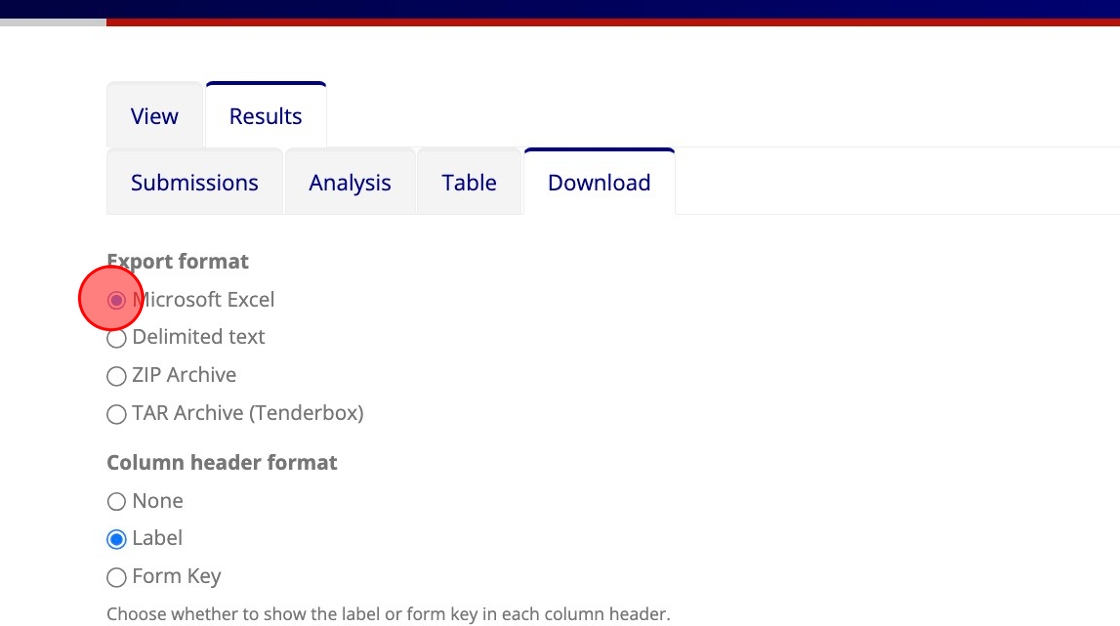
The below screenshot shows a Submission Register spreadsheet exported by using the "Microsoft Excel" option.

See Download Range Options if you wish to include only a specific range of submissions.
Structured File Archive
We recommend selecting the "TAR Archive (Tenderbox)" option for downloading all files uploaded by all bidders for a particular TenderBox.
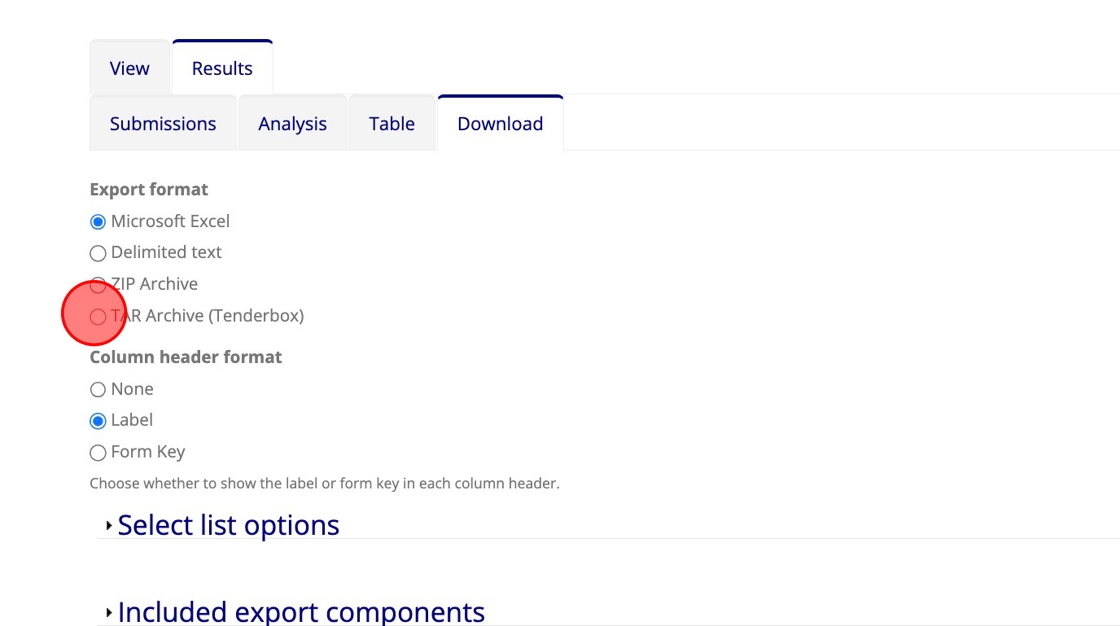
- The resulting downloaded archive will contain each bidder's files in a separate subfolder.
- A Submission Register Spreadsheet is included.
- This is the only option that will work for large downloads (multiple gigabytes).
You may need a third-party application like 7-Zip or WinZip to extract the TAR file if your system cannot open it, check with your ICT department.
See Download Range Options if you wish to include only a specific range of submissions.
Unstructured File Archive
Files are also downloadable as a ZIP Archive. This archive will contain all files from all included submissions together in one folder and is not generally preferred unless you will be selecting to download files from only one bidder's submission.

See Download Range Options for details on how to specify the inclusion of only one specific bid.
Download Range Options
Regardless of which download is chosen, by default all submitted bids for the TenderBox are included. To change this click "Download range options" towards the bottom of the download page.

Specifying a Single Bid
- Select "Submissions by number from".
-
Enter the submission number of the desired submission in the input box provided. (Submission numbers are provided in the first column of the Submission Register Spreadsheet)

-
Set this same number as the value for "and optionally to".
Specifying a Range Of Bids
Follow the same instructions as above, but use the lowest and highest submission numbers you wish to include as the values for the "from" and "to" inputs respectively. Alternatively, one of the other options for specifying a range may be more appropriate to your case, such as defining a date range.
Excluding Drafts
Under Included submissions you have the option to exclude (or include only) draft submissions.
