Contract Document Management
Uploading Contract Documents
-
Access the contracts list:
-
For a (filterable) list of all contracts, navigate to the ADMIN menu, and click Upload contract documents in the Contracts sub-menu.

-
A list of contracts specific to a particularly tender can be accessed via the View contracts link available in the Awarded Contracts tab of the Tender Dashboard, see Tender Dashboard - Awarded Contracts Tab.
-
-
If viewing all contracts, use the filters at the top of the page if necessary to find the contract you wish to upload contract documents for.
-
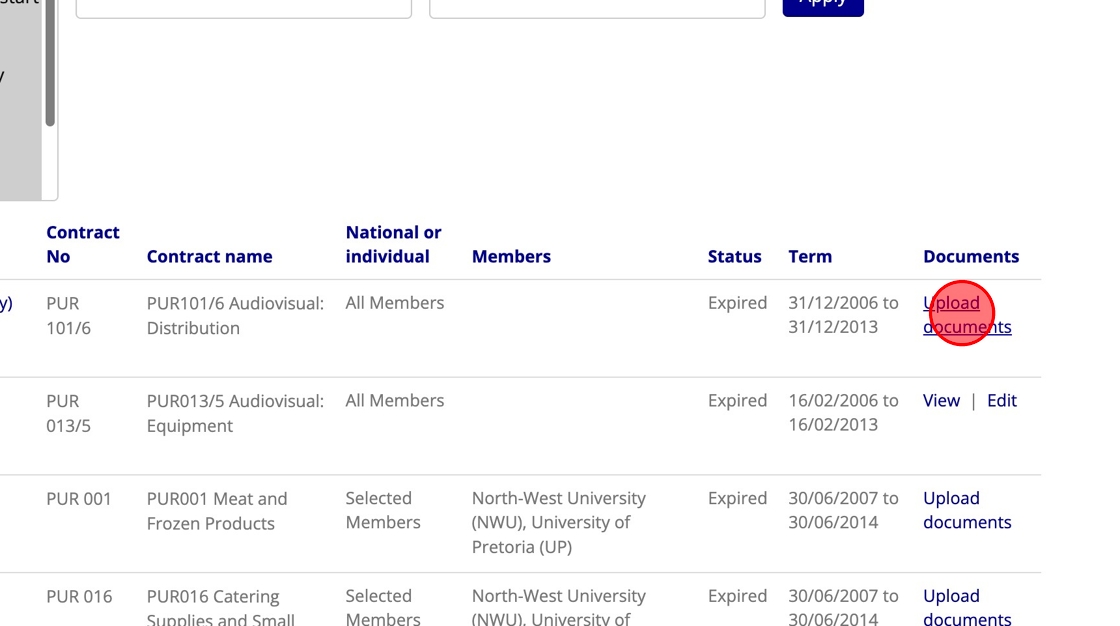
Once you have found the contract in the list, find the link in the column furthest to the right.
-
Click the "Upload documents" link which will be available if no contract documents have yet been uploaded for the contract.
-
If contract documents have previously been added, use the provided "Edit" link.

-
-
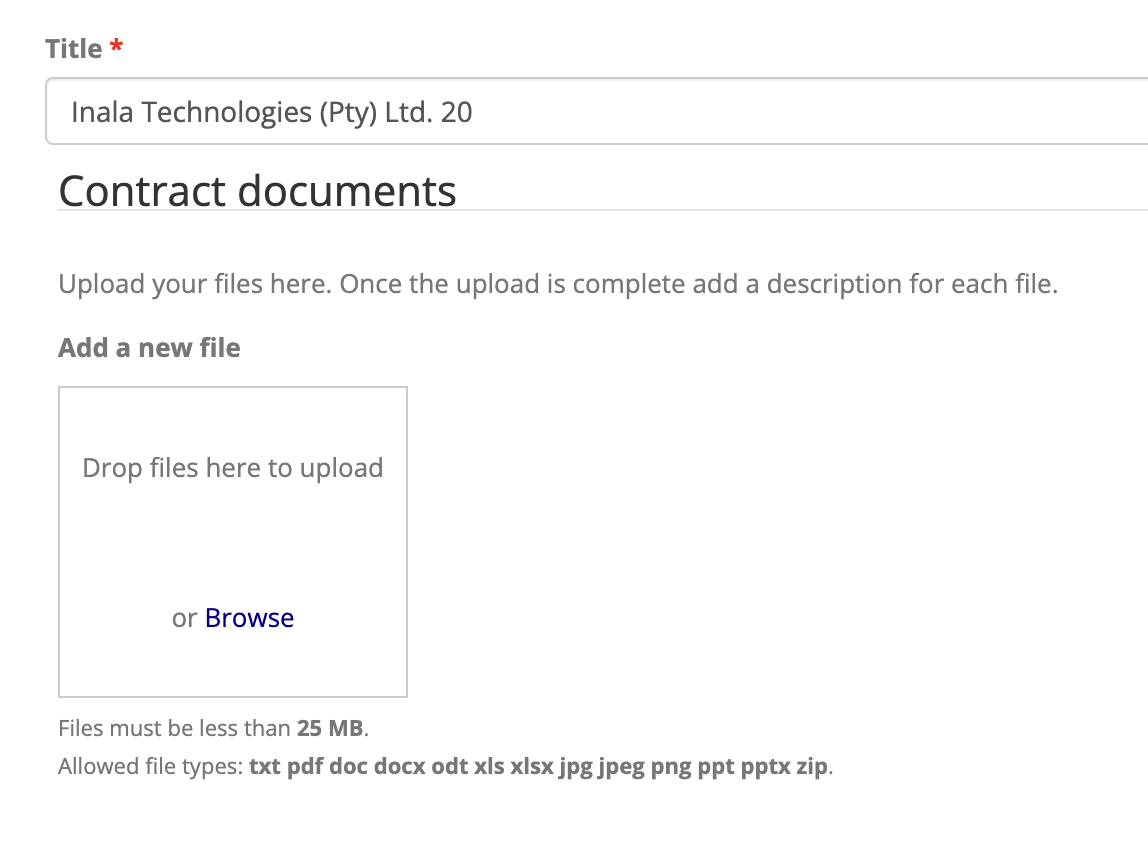
Drag and drop the relevant files into the box provided, or click "Browse" to select files.
-
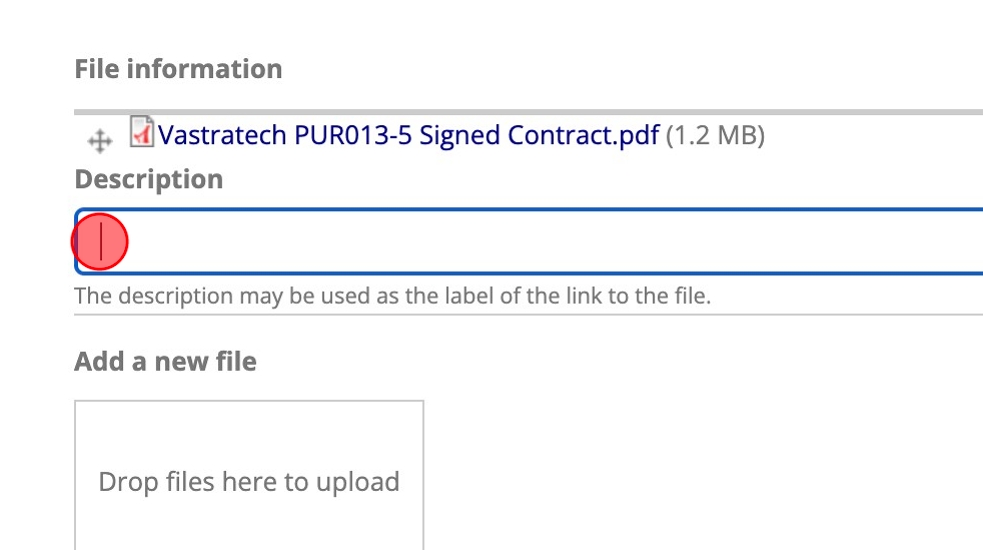
Once files have been uploaded, optionally add a description for each file.
-
The Download all files section should be left as is.
-
Ensure that you click Save after you have added the files.
Viewing Contract Documents
-
Follow the instructions above to access a contract list featuring the relevant contract.
-
Click the "View" link provided when contract documents have previously been uploaded.

-
Click on a listed document in order to download it. Alternatively, when available use the link at the bottom of the page to download a Zip file containing all documents for this contract.
Removing Contract Documents
-
Follow the instructions at the top of this page to access a contract list featuring the relevant contract.
-
Click the "Edit" link provided when contract documents exist for the contract.
-
Use the corresponding "Remove" button in order to remove a document from the list.

-
Click Save after you are done making changes.