Creating a Tender
Selecting the Tender Category
- Click Add new Tender to start the process.

- In the form that appears, click on the Select Tender Category input.

This field will allow you to type and search for a relevant tender category.
-
Start typing a search term such as "building" to filter relevant categories.
-
From the dropdown, select the most appropriate category.
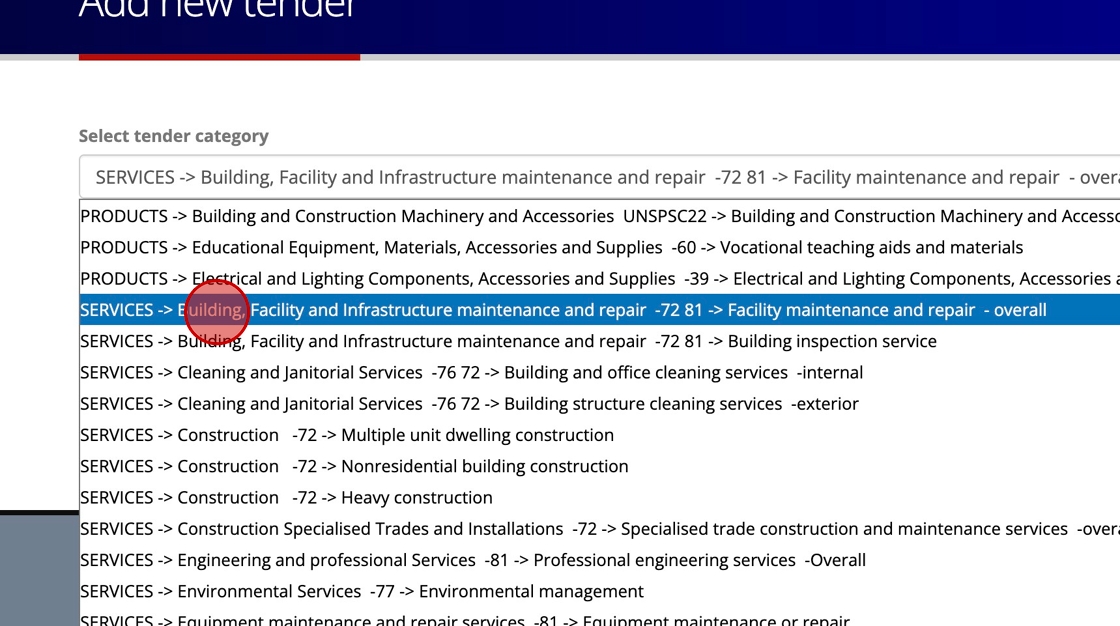
Ensure you choose the most relevant category for accurate classification. The automatically generated PU number is based on this primary category, additional categories can be included later.
- Once you've selected the correct category, click Submit.

This will take you to the next step where you can begin filling in the detailed information about the tender.
Tender Title and Description

Tender Title
Enter a brief and concise title for the tender, such as "3-year contract for supply of audiovisual equipment."
Note: Keep this title short as it will be used in emails and notifications. If it's too long, it will be truncated.
Tender Description
Provide a detailed description of the tender, including all relevant information. For example:
"This is a three-year contract for the supply and maintenance of audiovisual equipment for lecture halls across three campuses for the University of Cape Town."
- Do not use all capital letters.
- The description field is important as it populates contract records for awarded tenders.
Use this field to clearly describe the requirements and scope of the tender, ensuring that suppliers have all necessary details before making a submission.
Tender Information
Type
Select the tender type from one of the following options:
- RFP (Request for Proposal)
- RFQ (Request for Quotation)
- RFI (Request for Information)
- EOI (Expression of Interest)
This field is used only for reporting purposes and does not affect the tender numbering or its accessibility.
Closed tender
Check this checkbox if this tender is NOT to be listed on public tender lists, but still accessible via the URL.

Tender status

Choose the status of the tender:
- In development: Use this default option while creating the tender.
- Open: Change to this when ready to publish.
- Closed: After submission deadline.
- Awarded: Manual override.
- On hold: Manual override.
- Cancelled: Manual override.
Tender number
The read-only system-assigned PU number based on the selected primary category.
Member or alternate tender number
You may add a member or alternate tender number that will be used in public listings.

Applicable members
Specify whether this tender is for all members or specific individual members only.

If this is an individual member tender, search for and select the relevant member:
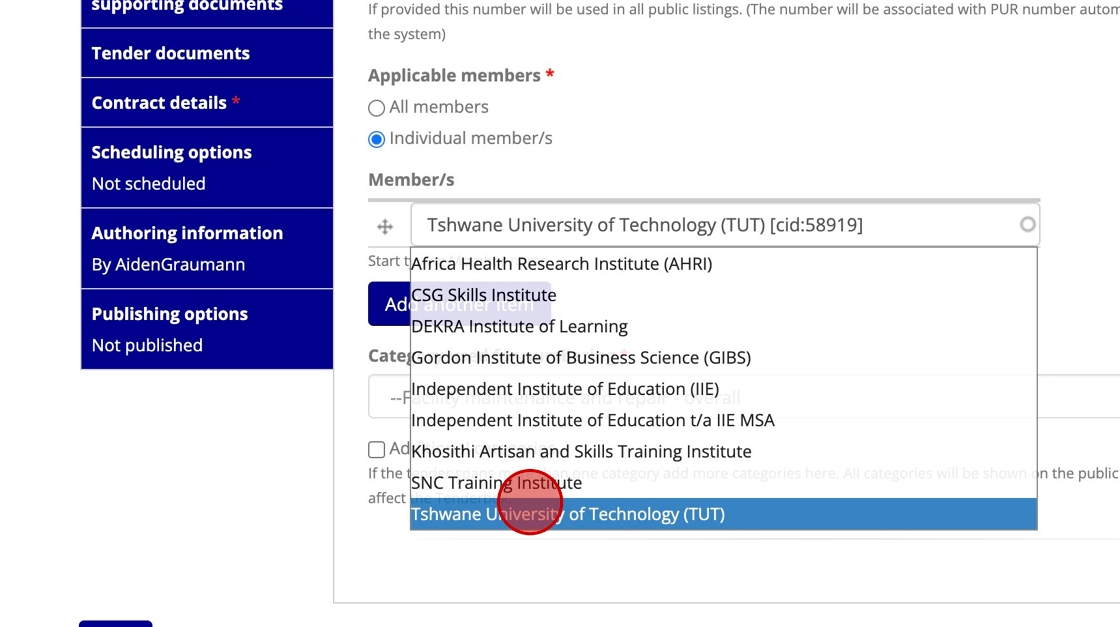
If appropriate you may add multiple members by clicking "Add another item":
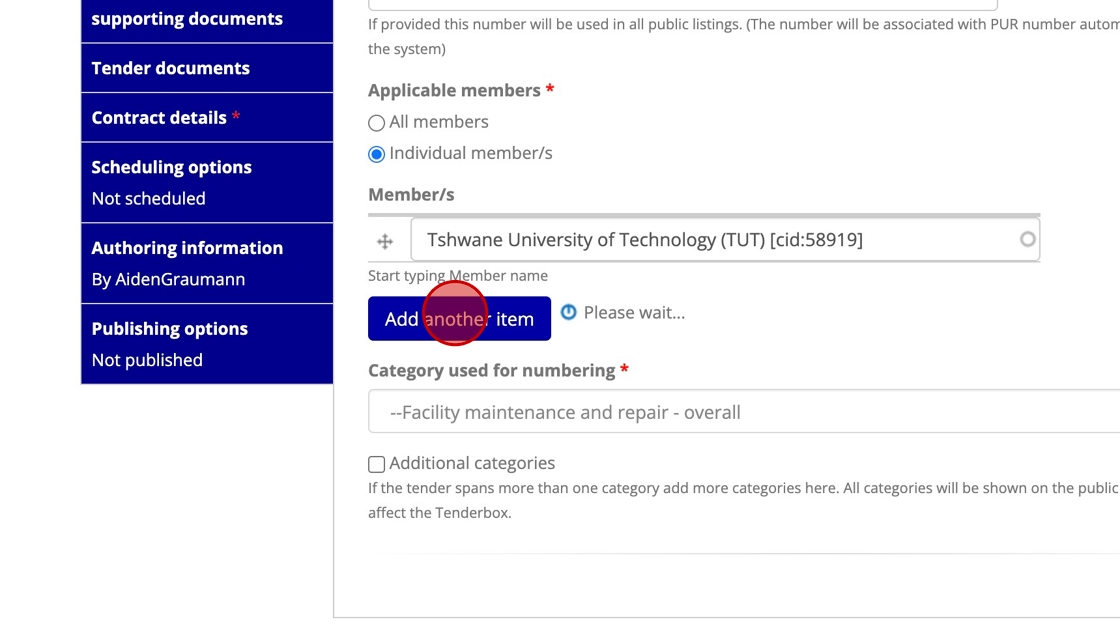
Category used for numbering
This reflects the primary category (previously selected) associated with the tender number.
Additional categories
If the tender spans multiple categories, check the 'Additional categories' checkbox.

Select the category type (usually 'PRODUCTS' or 'SERVICES'), then the parent category, then the sub-category, for each additional category you wish to add.

Associated Tender/s
This section allows you to optionally associate this tender with one or more previously existing tenders, particularly important in the case of a Re-tender.
- Date: The date of the association.
- Reason: Indicate whether this is a Re-tender of the tender you will select in the next step, or simply an "Associated tender".
- Associated tender: Search (by PU number) for the pre-existing tender to be associated with this one.

You may add more than one associated tender if necessary:

Requirements & Notes
Provide any specific requirements or notes for the tender. Examples include instructions for pre-purchase inquiries or details on related transactions.
You can format the notes using the provided rich text editor.

Payment Terms
Fee payable to PURCO SA
Specify the fee that suppliers need to pay in order to access this tender. If the tender is free, set this value to 0.

Payment Terms
If necessary, make adjustments to the Payment terms text.
Delivery of Bids
Enable online submissions
Selected by default, this allows the creation of a TenderBox, to be used by suppliers to submit their bids electronically.

Delivery Requirements
If necessary, make adjustments to the delivery requirements text that appears in the 'Delivery' tab that suppliers see when viewing a tender.
Send Documents To
If appropriate, select additional options for bid delivery.

Information Session
Create Information sessions
If appropriate, select 'Yes' in order to capture details of information sessions that will take place for this tender.

Info session details
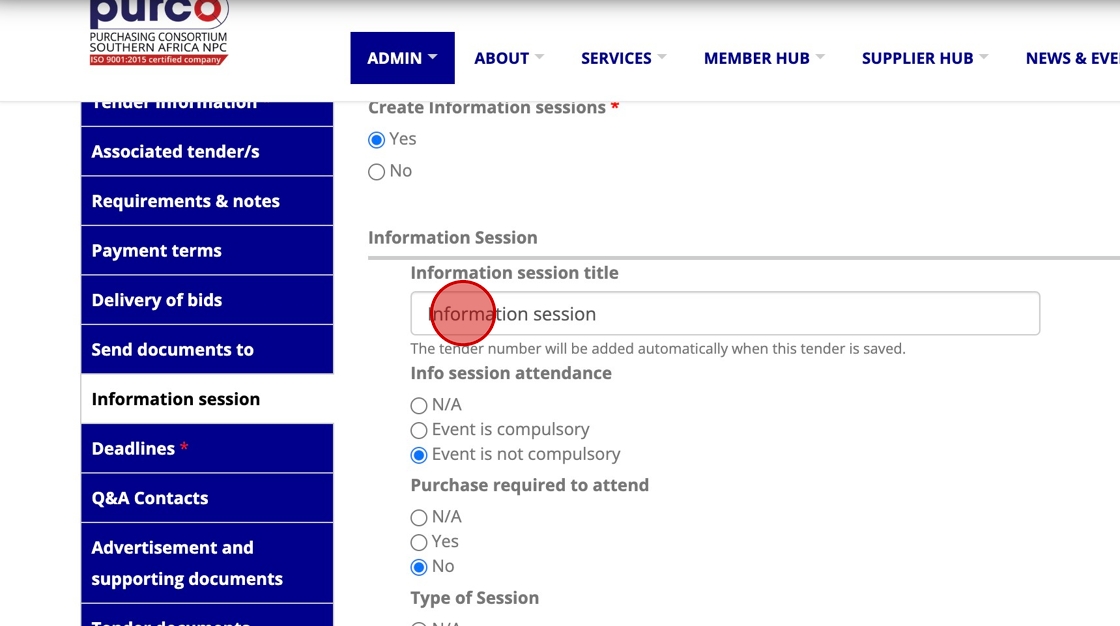
Provide details of the information session:
-
Session title: Enter a title for the session.
-
Info session attendance: Indicate whether attendance is compulsory or not.
-
Type of session: Specify if the session is virtual, physical, or both - a hybrid event.

-
Session date and time: Set the date and time for the session.
-
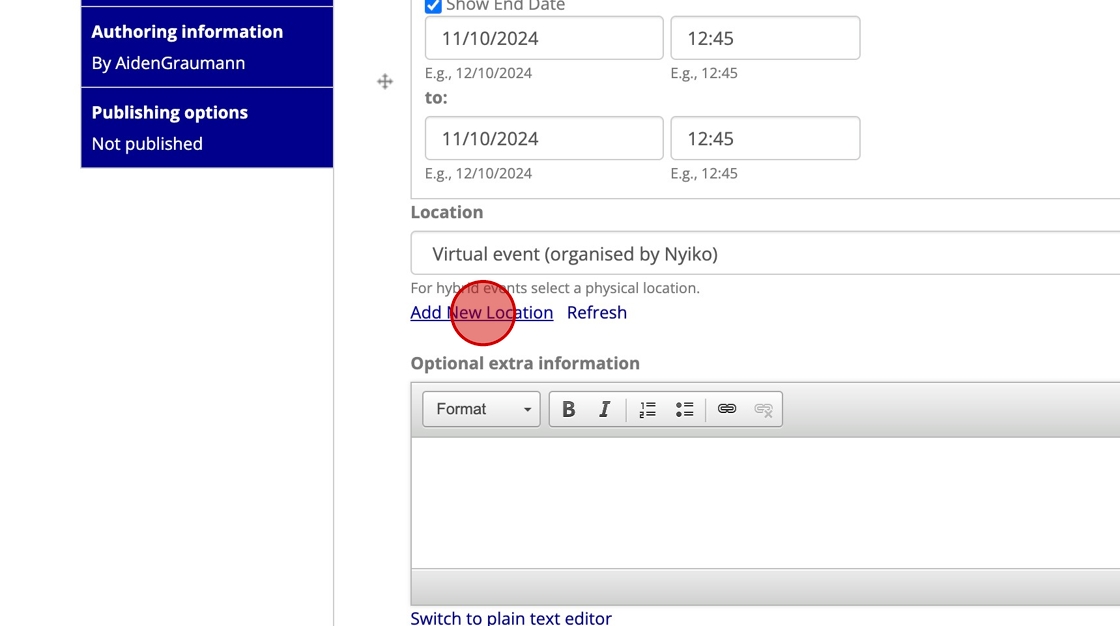
Location: Select a location option, or follow the steps below to add a new location:
-
Click "Add New Location":
-
Supply the address details for the new location option:

-
If necessary click "Refresh" after adding the new option in order to make it available.
-
-
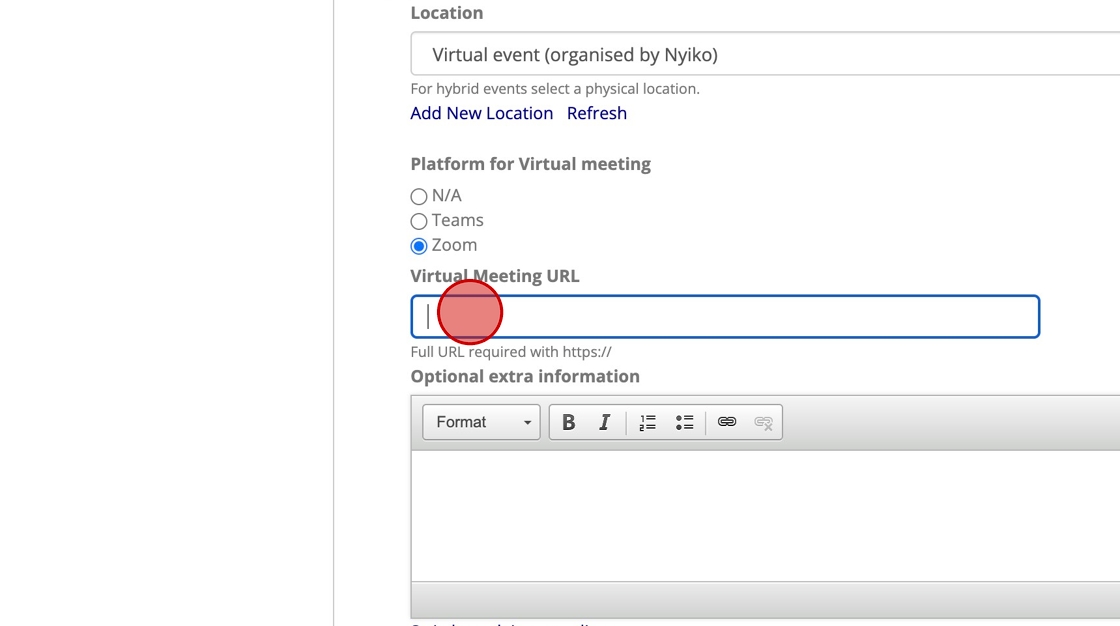
Platform for Virtual Meeting: If this session is a Virtual or Simultaneous Hybrid event, indicate whether it will be hosted on Microsoft Teams or Zoom. Paste the meeting link (as a full URL beginning with 'https://') in the Virtual Meeting URL input box.
-
Optional extra information: If necessary provide any additional text that will appear along with the information session details.
If more than one information session will take place, click "Add another item" to create another.
Deadlines
Registration/purchase deadline
Specify the deadline by which suppliers must register or purchase the tender. The tender will stop being visible on the website tender list page at this date and time.

Submission deadline
Indicate the date and time by which all tender submissions must be received. This will prevent any submissions after the deadline.
Q&A Contacts
Q&A Alerts (post-purchase)
The tender author and tender purchasers can post questions and answers in the Q&A section of the tender page. These are visible only to the author and all purchasers. When a question or answer is posted the system emails a copy to the author. When the author approves the question an alert is emailed to all purchasers.
You may add additional email addresses to receive these alerts as a comma separated list in the Additional recipients for Q&A Alert emails input box.

For more details see Tender Q&A Management
Contact person for pre-purchase enquiries
If appropriate select specific contacts who will handle pre-purchase enquiries directly.
Advertisement and Supporting Documents
Advertisement date
Input the date of the tender advertisement.

Adverts and public supporting documents
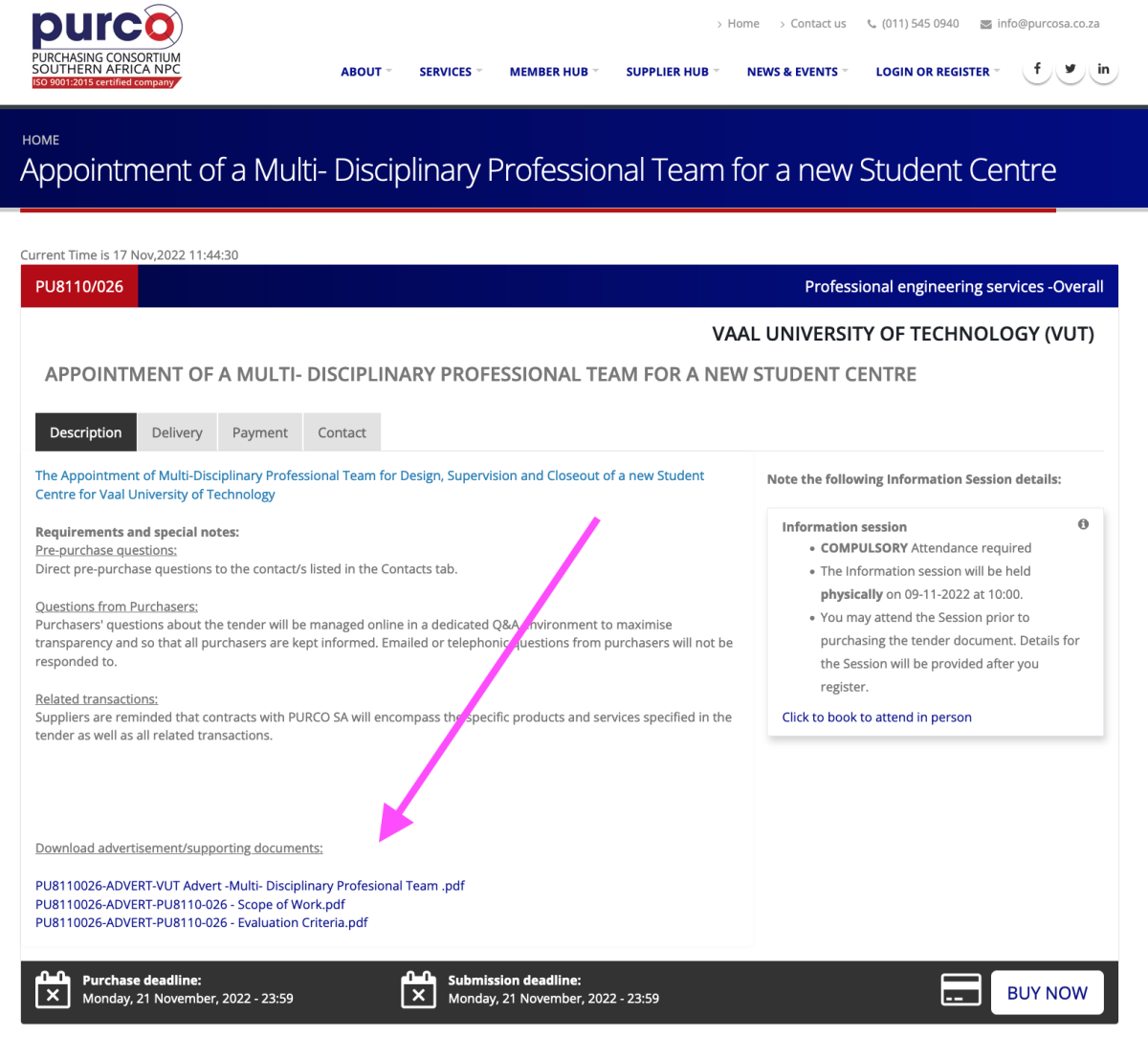
Upload any supporting documentation or advertisements related to the tender. Make sure these are not the actual tender documents, but rather materials that should be listed and downloadable on the public tender page.
The image below demonstrates where the links to these documents will appear when a supplier views the tender:
Tender Documents
Upload files by clicking 'Browse' or drag and drop multiple documents at a time. The three categories of files uploadable are explained below:
Tender documents
Upload the tender documents that suppliers will receive access to after making their purchase (or after registering in the case of a free tender).
Staff administrative documents
Upload any PURCO SA background or administrative documents e.g. internal project or audit documents (pdf, doc etc). These files are not shared with suppliers or Members.
Member administrative documents
If applicable, upload any background or administrative documents from Members e.g. approvals or instructions (pdf, doc etc). These files are not shared with suppliers.
Contract Details
Expense type
Indicate whether this tender falls under OPEX (operating expenses) or CAPEX (capital expenditure).

Service fee percentage
Input the percentage number of the service fee that will apply. (Enter only the number without the '%' symbol)

Contract name
Provide a name for the contract that will be used when generating the contracts for the winning bidders.

For the following three fields, search for and select the relevant staff member.
- Contract manager
- Contract administrator
- Contract finance administrator

Completing the Process
Click the 'Save' button.

Upon successfully saving the new tender:
- A draft tender invitation email will be created. See Tender Invitation Mailings for more.
- Details provided for Information Sessions will be used to create Info Session events within the CRM system, allowing suppliers to register to attend these events. See Information Sessions for more.
Make sure all relevant fields are filled out and that any required supporting documents are uploaded before proceeding to publish the tender.